
Guide
Print to a University printer from your own Windows or Mac laptop
Print from your own device on-campus using MyPrint - Mobility Print
Updated on 10 September 2026
Mobility Print simplifies the printing process allowing staff and students to print from smartphones, tablets, laptops or Chromebooks regardless of operating systems.
To install and use the printers, you must have access to the University campus network, whether wired, wireless (Eduroam) or VPN.
Instructions
Windows Installation
- Open a browser and go to http://uod.ac.uk/my-print-mobile
- Click the ‘Download’ button
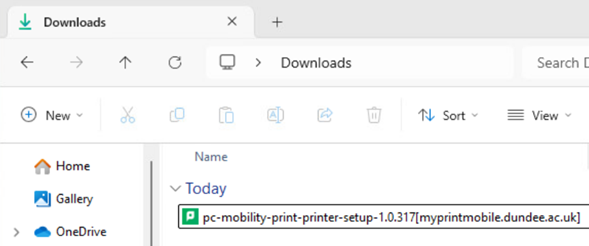
- The installer will be named something like ‘pc-mobility-print-printer-setup-<version>[myprintmobile.dundee.ac.uk].exe’
- Don’t change the name of the installer; it tells Mobility Print where the printers live
- Run the installer
- Go through the initial wizard steps
- During the process, the installer will retrieve the printer list
- Select the printer(s) to add; we recommend installing both ‘SecurePrint_BW’ and ‘SecurePrint_Colour’
- When prompted, enter your university credentials with your full username (e.g. [email protected])
Mac installation
- Open a browser and go to http://uod.ac.uk/my-print-mobile
- Click the ‘Download’ button
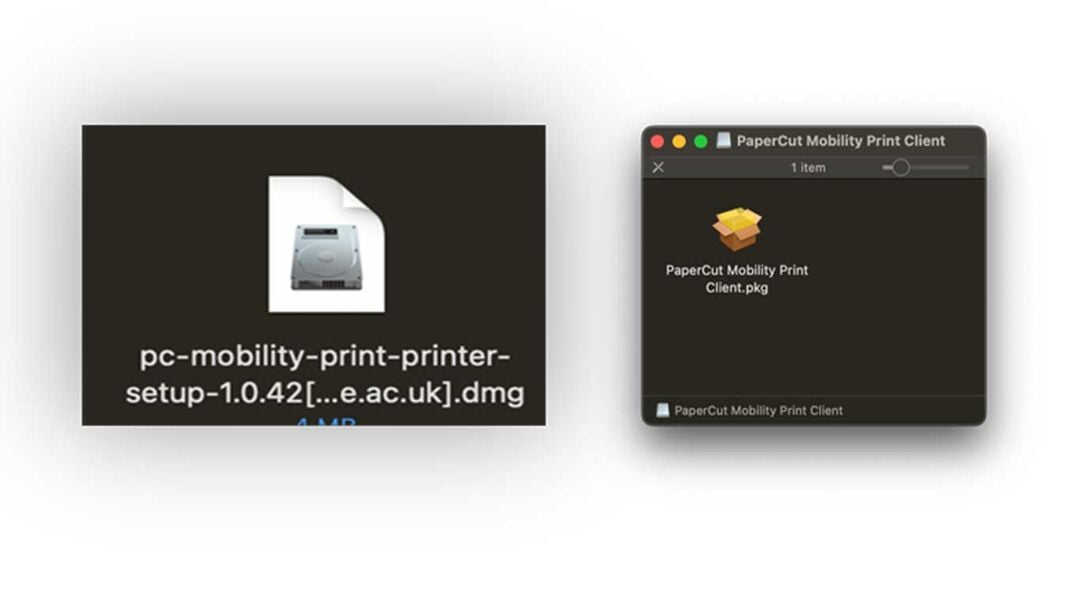
- Run the downloaded DMG file. This will be named something like ‘pc-mobility-print-printer-setup-1.0.42[myprintmobile.dundee.ac.uk].dmg’ Then run the ‘PaperCut Mobility Print Client.pkg' contained inside.
- After the installation you will receive a notification that the 2 printer queues are installed
After the installation
- The printers have now been added to the device
- They can then be selected when printing a document
Once the document has been sent to the print queue, you can then go to a printer and release the document with your university card. For more information, review the Staff Guide or the Student Guide.
The installer only installs the printers; there is no application installed.
If you need to reinstall the printers, or need to install an additional printer, go through this process again.
Digital and Technology Services