
Guide
Print from a staff computer (new HP printers)
Our new HP printers make it easy to print securely from your staff laptop anywhere on our campuses
Updated on 10 September 2026
Our new printers no longer needed to be added individually. You can send a document to print and collect from any printer on our campuses. The new printers should install automatically on your device.
Printing to old printer names such as Tower-Canon-iR5235 will no longer work. You should remove the older printers.
Send your document to print
Go to the print option in the application you're using. In the list of printers you will see
- SecurePrint_BW on myprint.dundee.ac.uk
- SecurePrint_Colour on myprint.dundee.ac.uk
If you cannot see these printers, follow the instructions below.
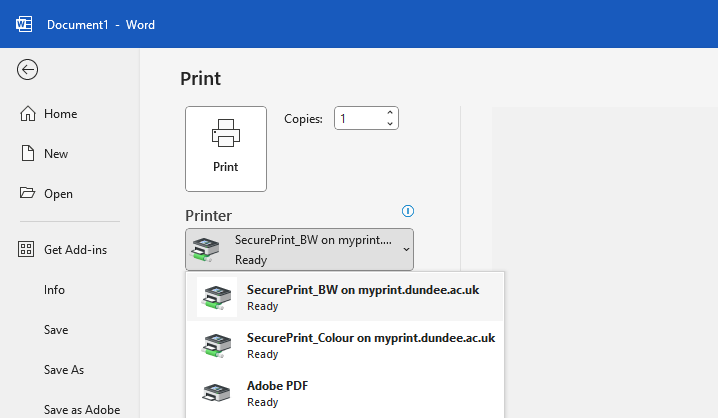
Choose BW to print in black and white, or Colour to print in colour.
Release and collect your work
When you send your work to print it will stay in the queue for 24 hours, it will only print when you go to a printer to release it.
To release the documents you have sent to print
- Hold your staff card against the card reader below the touch screen
- You need to register your card the first time you use it, find out how below.
- Tap the Print Release icon on the left of the touch screen to show your print jobs
- Use the check boxes to choose which jobs you wish to print
- Press Print
Print from your own laptop or phone
You can use Web Print to print from your own device or mobile
- Log in to My Print with your University username and password
- Click or tap on Web Print and select Submit a Job
- Select if you want to print in colour or black and white
- Colour printing: Secure_Webprint_Colour (virtual)
- Black and white: Secure_Webprint_BW (virtual)
- Click or tap Print Options and Account Selection
- Enter the number of copies required
- Click or tap Upload Documents
- Click or tap Upload from Computer and select your documents
- Click or tap Upload Job
- Follow the instructions to release and collect your work as normal
This service is more limited than printing from a University PC. There is a size limit of 100mb and you can only upload: PDF, bmp, dib, gif, jfif, jif, jpe, jpeg, jpg, png, tif, tiff
If you wish to print a Word document or similar, you will need to save it as PDF first.
Register your card (first time)
If this is your first time using My Print you will need to register your Staff ID card with the My Print system.
- Hold your staff card against the card reader below the touch screen
- Log in to your University account using the keyboard on the touch screen
Log in with your full username when using My Print
✅ [email protected]
❌ jbloggs
(this is different than how Pay2Print used to work)
- Your card is now registered, tap it again to confirm the registration
If you cannot see the new printers
Windows
- Click Start then type Software Center
- For Windows 11 devices, type Company Portal
- On the Applications page click My Print
- Click Install
If the My Print app is already installed, and you still cannot see the printers, try restarting your machine.
macOS
- Open the app Self Service from your /Applications folder
- Choose the printing category and click My Print in the results
- Click Install
- Installation will take a few minutes.
- When the My Print Print Deploy app appears on your screen, sign in using your full username (for example [email protected]) and password
- The new SecurePrint_Colour and SecurePrint_BW printer queues will install and be ready to use.
Remove old printers from your device
To remove old Canon (or other) printers from your computer
Windows
- Click Start then click the cog icon
- Click Devices, then Printers & scanners on the left
- Click the name of your old printer
- Click Remove device
macOS
- Click Apple menu then System Settings
- Scroll to Printers & Scanners
- Click the name of your old printer
- Click Remove Device
Digital and Technology Services