Guide
Reduce document and image file sizes
This guide provides information on how to reduce file sizes for Word documents, PDFs and images
Updated on 10 September 2026
Reduce photo or image size
You can choose to reduce your photo or image size with a free online tool or use software such as Adobe Photoshop.
Online photo compression tools
You can find online tools by searching for free online compression tools. Most online tools use the same steps.
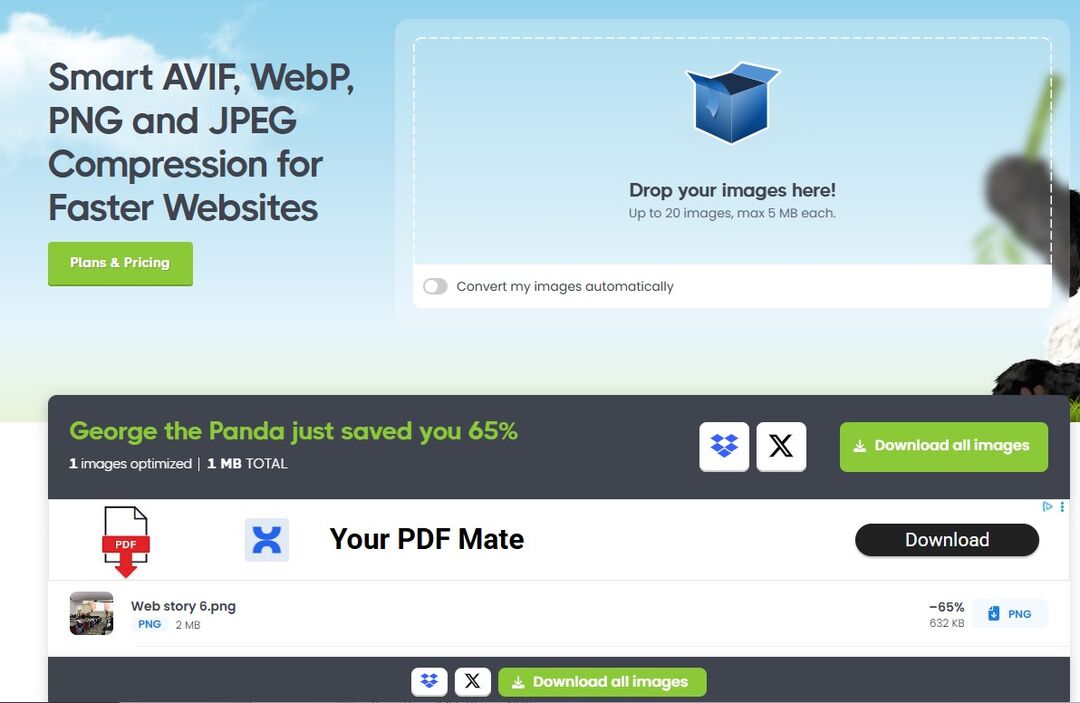
Here is an example using TinyPNG
- Drop your files in the selected area
- Download your reduced file
Reduce photo file size with Adobe Photoshop
Choose an option to reduce your photo file size, or complete both steps 1 and 2:
- Edit the image height and width
- Export the file to Save for Web (legacy)
Edit image size
- Open your file using Adobe Photoshop from the top menu File > Open
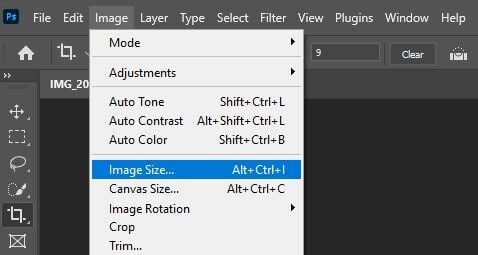
- Click Image from the top menu and select Image size...
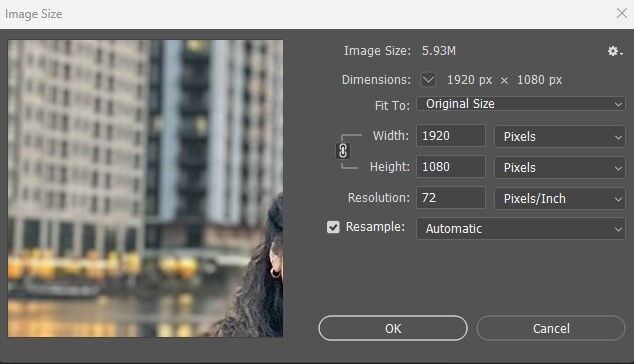
- Place your cursor in the width field and reduce the size
- In the latest versions of Photoshop (CC 2019 and later), the height is automatically adjusted when you edit the width by default
- For older versions, make sure the "Constrain Proportions" option is enabled. This ensures that the aspect ratio (the ratio of width to height) of the image is maintained during resizing.
- Click OK
Export the file
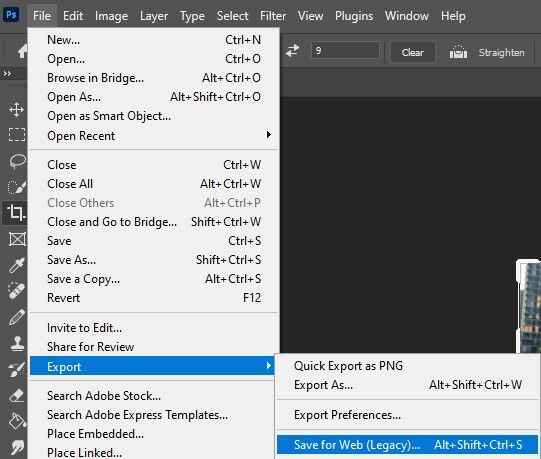
- From the top menu, choose File > Export > Save for Web (legacy)
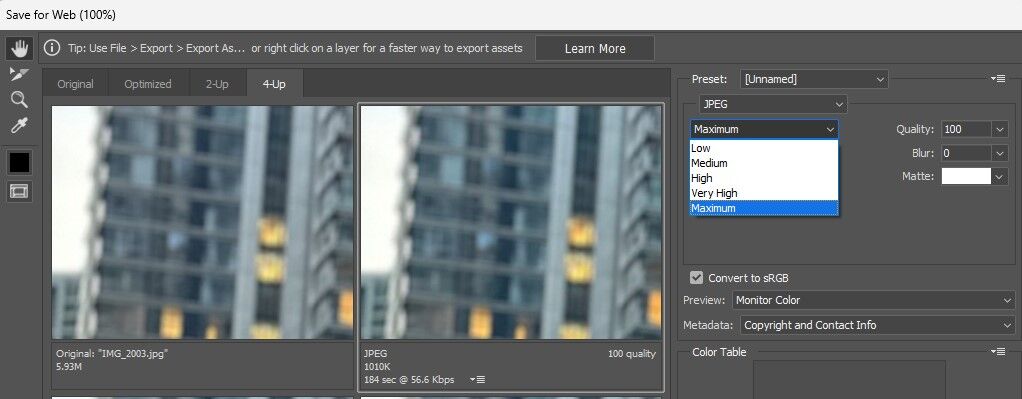
- You can choose to view up to 4 options
- Click on an option from the 4 windows
- From the right-hand menu, select JPG file type for photos (PNG or GIF for images with transparency)

- On the right-hand menu, select the quality of the photo
- Choose from Maximum, Very High, High, Medium or Low
- Click Save
Reduce Word document file size
You can reduce the file size of a Word document by:
- Compress pictures in your document
- Remove embedded fonts
- Save file as .docx
Compress pictures
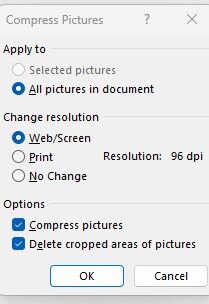
- Search for Compress Pictures in the search field on the ribbon menu

- Select the following options
- Apply to: All pictures in document
- Change resolution: Web (96dpi)
- Options: Compress pictures, delete cropped areas of pictures
Save file as .docx
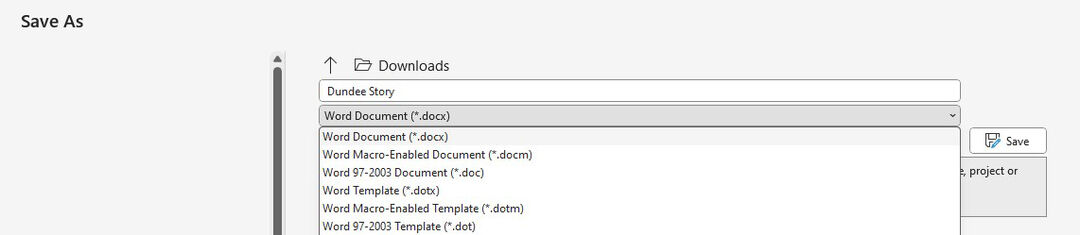
- Go to File > Save as
- Select .docx from the drop down list
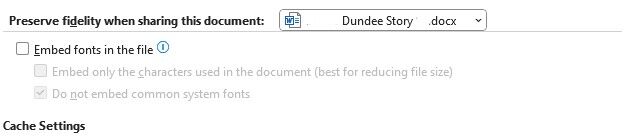
Remove embedded fonts
- Go to File > Options > Save
- Scroll down until you see Under Preserve fidelity when sharing this document
- Make sure that Embed fonts in the file is not selected.
- If you do embed fonts:
- Select Embed only the characters used in the document (best for reducing file size) and
- Do not embed common system fonts.
- Click OK
Reduce PDF file size
You can choose to reduce a PDF file online or using Adobe Acrobat Pro
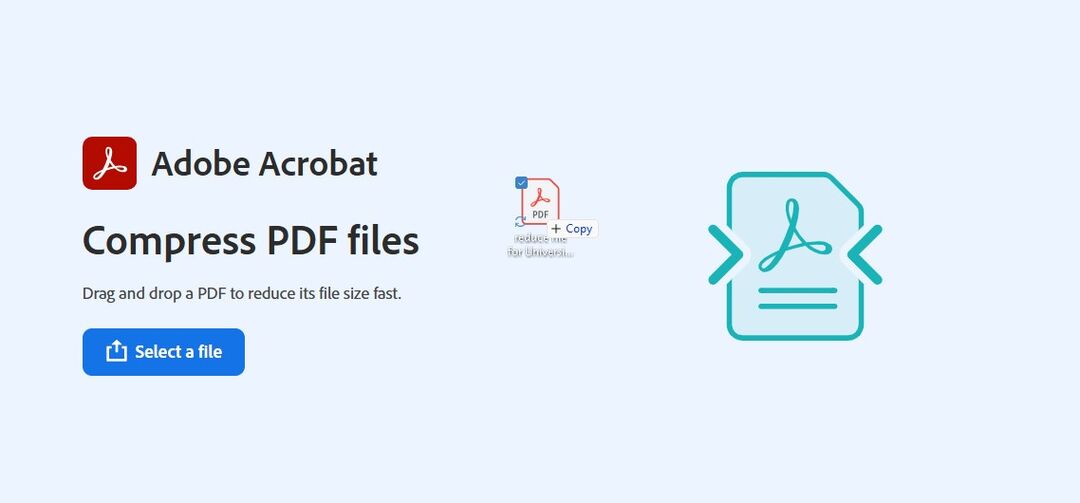
- Using Adobe Acrobat Compress to reduce a PDF online
- Select a file or Drag and Drop a file in
-
Wait for the compression to finish
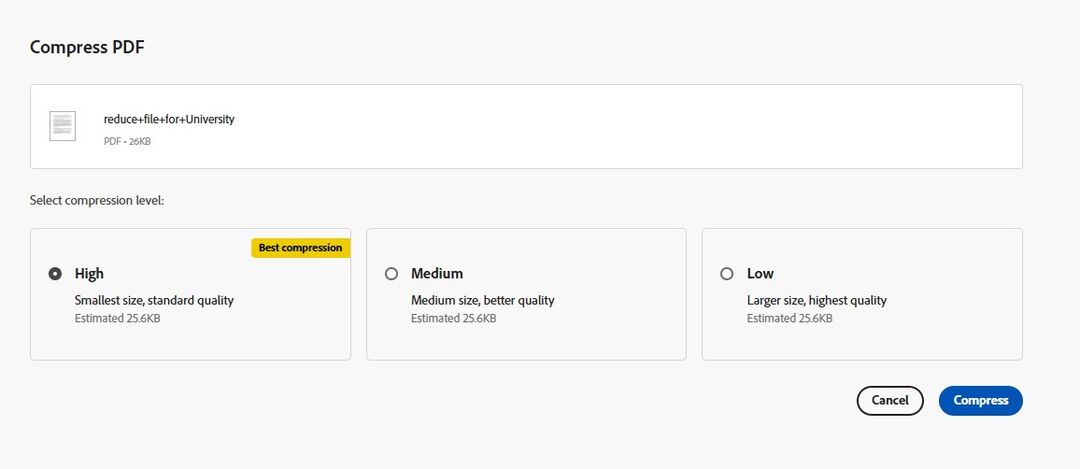
- You can select High compression for the smallest file size, Medium or Low for a balance between file size and quality.
- Click the Compress button
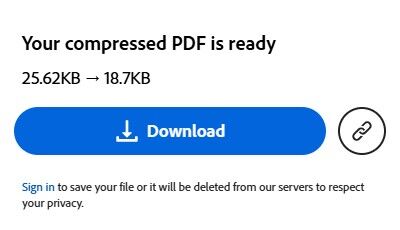
- Click the Download button to save your file on your device
Reduce PDF file size with Adobe Acrobat Pro
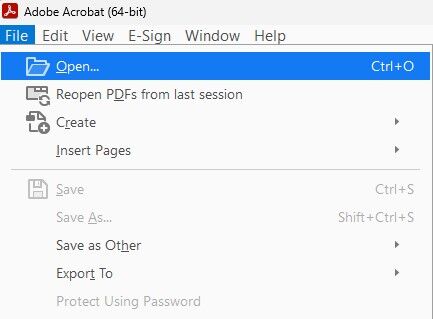
- Open Adobe Acrobat Pro
- Select File from the top menu to find your file
- Click Open
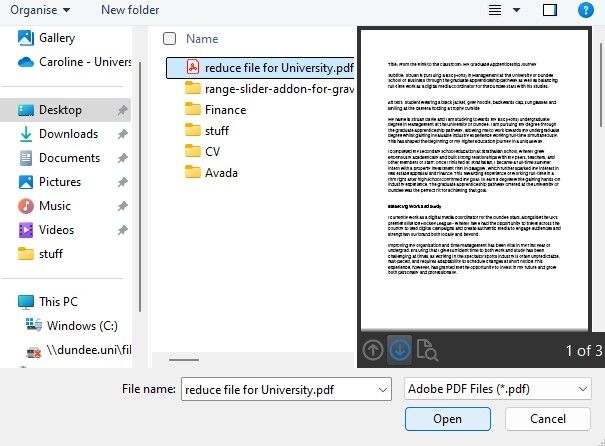
- Find your file on your device
- Click Open
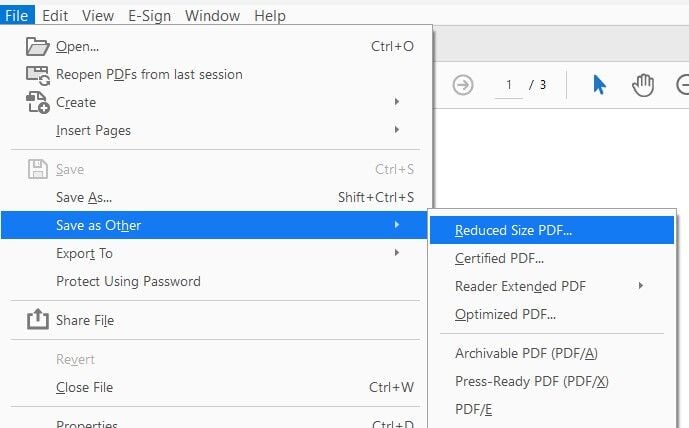
- From the File menu put your mouse over Save as Other
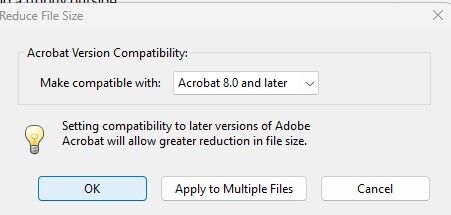
- Click Reduce size PDF... option
- Select Acrobat Conversion Compatibility from the drop-down list
- Select OK button
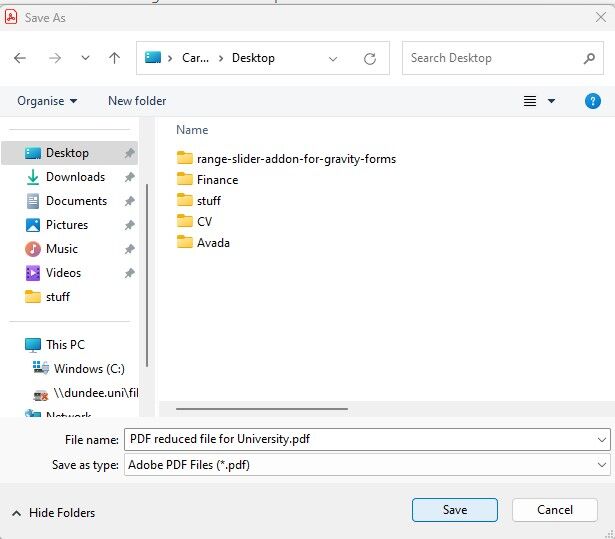
- Save file on your device