
Guide
Print a US election absentee ballot on a University printer
If you need to print a ballot paper and envelope to vote in a US election, you can use University printers to do so
Updated on 10 September 2026
If you have signed up as an absentee voter for US elections you have the option to receive this vote electronically (normally as a PDF). You can print this on University printers.
The paperwork for each state is slightly different. Use this guide to get you started.
University staff cannot give advice on voting procedure. If you have questions, you should contact your state election office. This includes questions such as whether to print on both sides of the paper.
Print your ballot paper
Your ballot paper will be a set of pages from the full PDF document. There will also be pages of instructions and an envelope template.
We would recommend printing ALL pages. Most documents will be in a specific order and may include special blank pages for double sided printing.
To print your ballot pages:
- Open the PDF in Adobe Reader
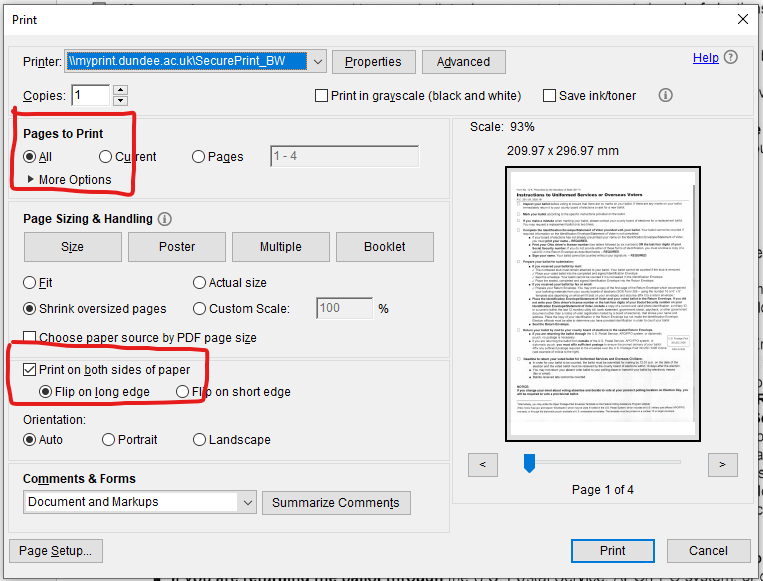
- Select All under Pages to Print
- By default, the print on both sides option is checked
- Leave this checked if you need to print double sided, but consider which pages are printing
- Uncheck if you are told to print single sided
Paper sizes
Your PDF may be in US Letter size 8.5 by 11 inches (215.9 by 279.4 mm).
This is wider, but shorter than the A4 paper size used in the UK.
You should choose Shrink oversized pages to make sure all parts of the page print.
Printing an envelope
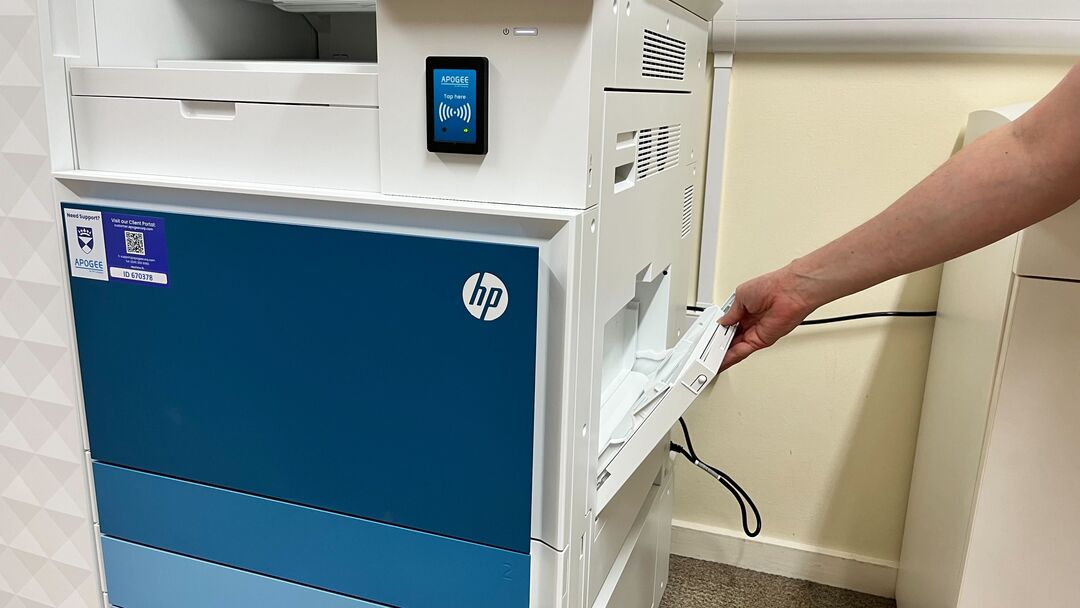
You can print envelopes using Tray 1 of the papers (on the right hand side).
It is most likely you will be using a UK C5 envelope which will allow you to fold the A4 sheets in half. C4 envelopes will not fit in our printers and should not be used.
Set up your print on your laptop
- Check the page number of your envelope template in the PDF
- Click Print
- In Pages to Print choose pages, then type the number of the page you need to print (for example 3)
- Check the envelope appears in the preview to the right
- Click Properties
- Click the Paper/Quality tab
- Choose Envelope C5 under Paper sizes, and Tray 1 under paper source
- Click OK then Print
Print on envelope at the printer
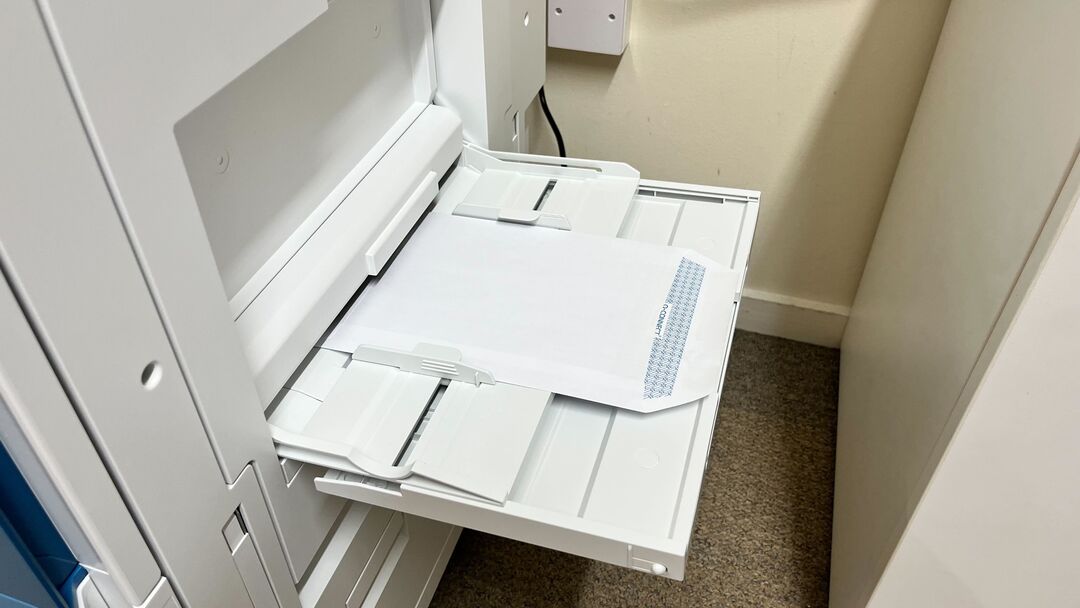
- Open Tray 1 on the right of the printer
- Insert the envelope with the front facing down, and the flap to the right
- Tap your card on the reader, and choose Print release
- Print your envelope
If your state needs you to print on both sides of the envelope
You need to print each page separately.
- Print the front page of the envelope as above
- Send the second page to the printer
- Put the envelope in with the first page facing up
- Scan your card and use the screen to print the second page