
Guide
Map your School of Life Sciences shared drives
Map your School of Life Sciences shared drives to your desktop and access the files you have stored there. Launch a script from AppsAnywhere to do this
Updated on 10 September 2026
- Open AppsAnywhere (use University credentials to log in if asked) and search for Map School of Life Sciences Shares
- Hover over Map School of Life Sciences Shares and select Launch
- Enter your LIFESCI-AD credentials (username may be different to your University one) in the black window when it appears and click OK to run the script
- The script will conduct a number of commands and take a few minutes to run - once it's completed, click OK in the dialogue box that appears confirming how many shares have been mapped
- To access your Shares, select the This PC shortcut on your desktop
If your access to Life Sciences shared drives changes, you can re-run the script at any time by repeating the above steps. This will add / remove the shares you have access to accordingly.
Troubleshooting
- If you entered the wrong password, try running the script again
- If you entered the wrong username, try rebooting your computer then re-running the script
If neither of the above worked, remove your saved LIFESCI-AD credentials from the Credential Manager.
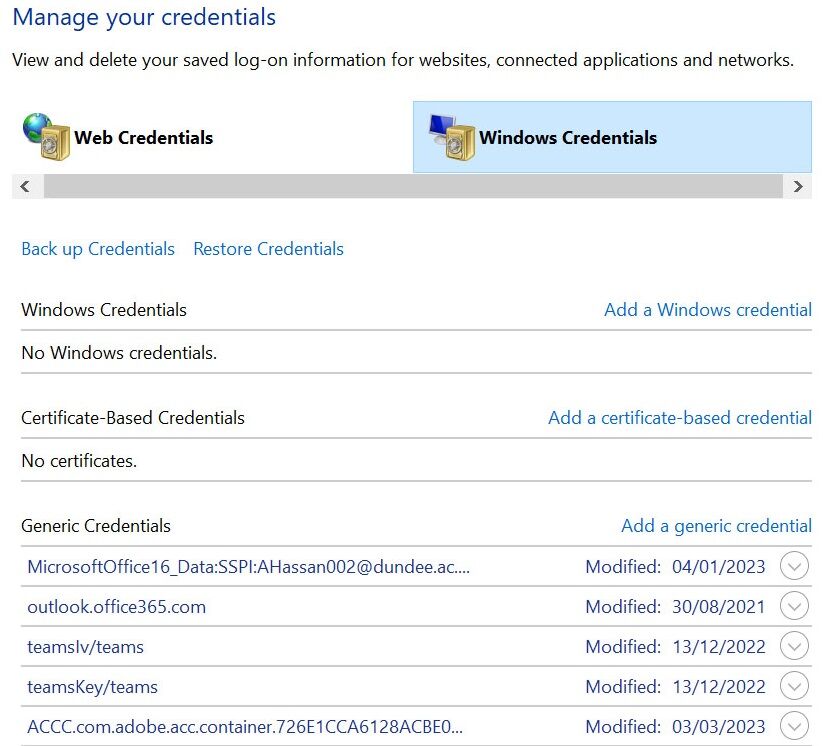
- Search for Credential Manager in the task bar, click on it
- Toggle to Windows Credentials to find and remove your saved LIFESCI-AD details. (See below)
- Re-run the script.
Enquiries