Guide
Free up hard drive space on your Windows managed device
This guide is for users who are on a managed Windows device and do not have elevated privileges
Updated on 10 September 2026
Check how much free space your device has
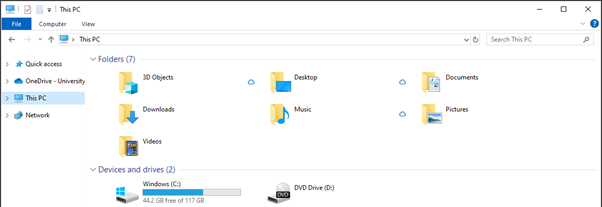
- Click ‘Start’, then type ‘explorer’
- Click on ‘File Explorer’
- From the left hand pane, select ‘This PC’
- Check the free space of the ‘Windows (C:)’ drive
Remove temporary files
You can free up hard drive space by removing temporary files on your device using Disk Cleanup.
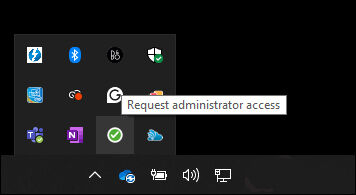
- Access your Windows taskbar. This is usually located in the bottom right corner of most Windows Operating Systems.

- Click on the up arrow to see the icons available.
- Click the green circle with the white tick - Request administrator access
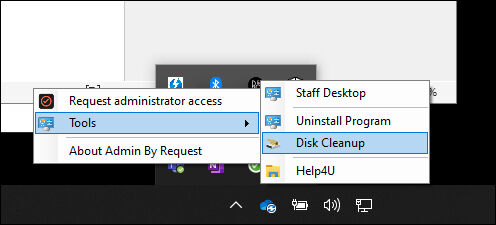
- Mouse over the Tools menu.
- Click on Disk Cleanup.
Remove local copies of files on OneDrive
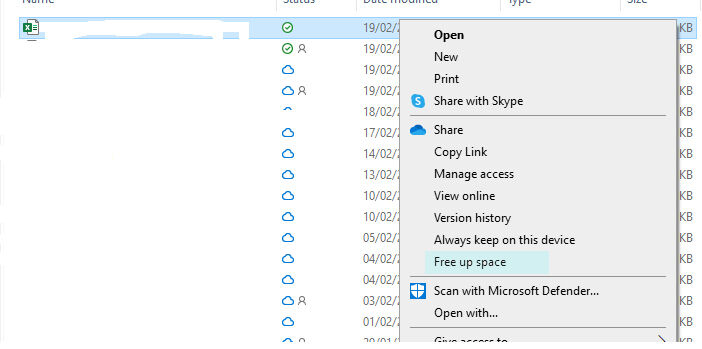
If you still need more disk space, you can also remove locally cached copies of files in your OneDrive which you don’t use often. This will remove it from your device, but it will be retained in the cloud. Only files that are stored on your device in OneDrive will show the ‘free up space’ option.
- Right-click any file in your OneDrive.
- Select 'Free up space'